


Using Mattermost Calls
Overview
Read this document to understand Mattermost calls and how to start or join a call, share your screen, chat, and multitask during a call.
Due to network boundary limitations, Mattermost Calls does not function on NIPRNet. With additional IP whitelisting, this may be possible on a per-customer basis.
Starting a call
You must be a Mattermost member to use Mattermost calls.
Each call creates a thread where users can chat during the call. The chat is saved in Mattermost and remains accessible after the call is over.
The limit is 200 users per call.
Start a call
Follow these instructions to start a call:
Open the Mattermost interface and locate the user or channel you want to call.
Select the user’s profile picture
A pop-up box will appear. Select Call at the bottom right corner.
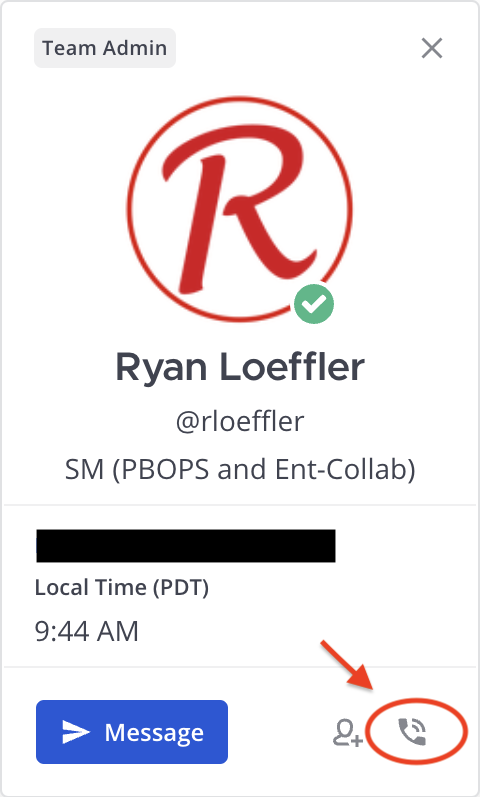
You can also select Start call from the top right corner of the chat’s header.

During a call, you can switch to full-screen mode by selecting the arrow button in the top-right corner.
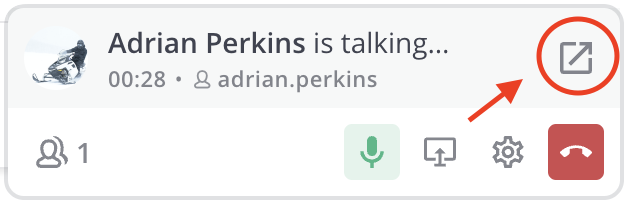
A full-screen call window will appear. This call window includes all user controls:
- Mute
- Screen share
- Chat
- Reaction Emojis
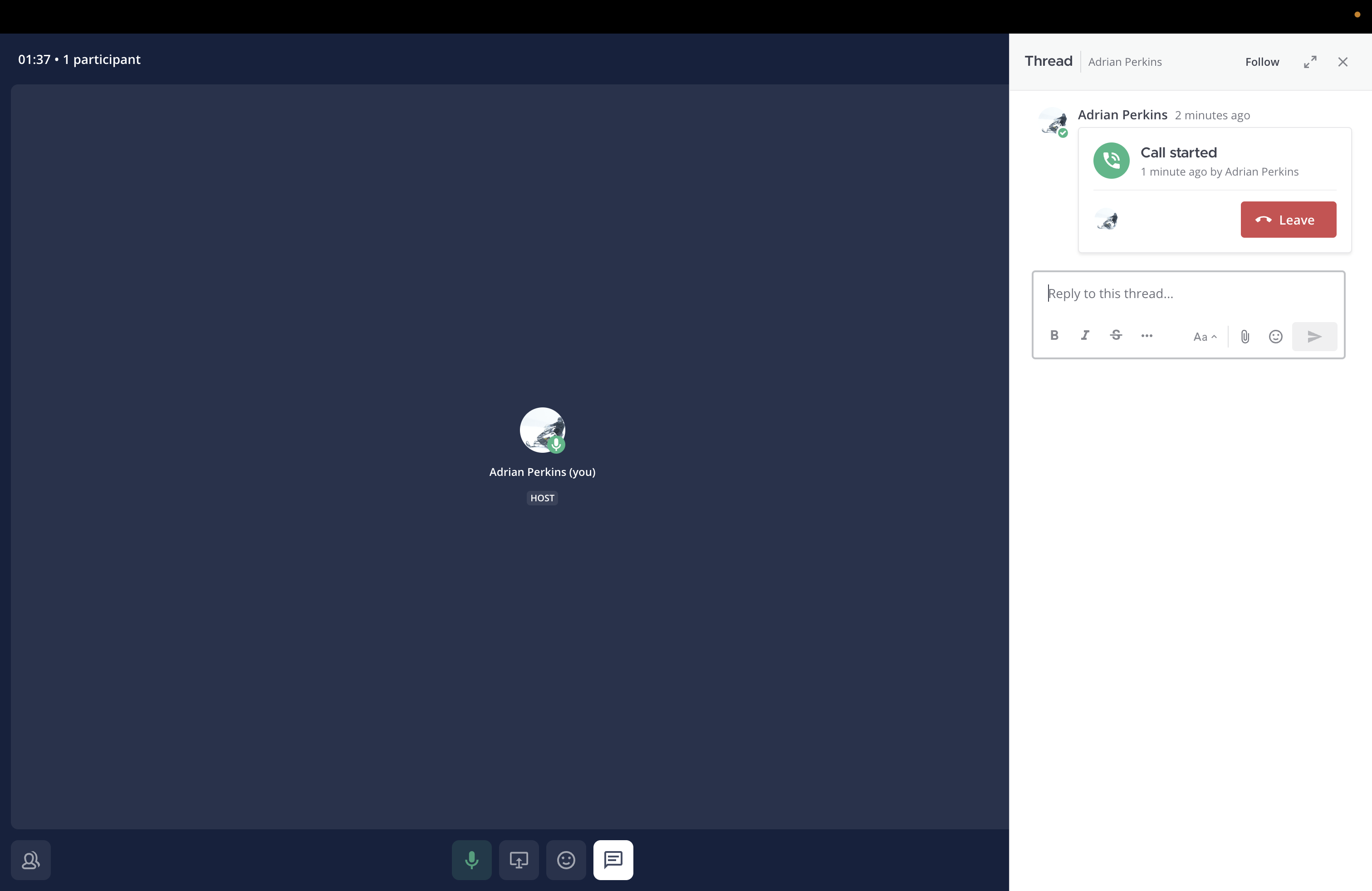
Details
- When you start a call in a channel, you are muted by default. In a direct or group message, you are unmuted by default.
- Alternatively, you can start a call using the
/call startslash command.
Join a call
Any active team member in a channel or message can join a call, whether it’s a public or private channel, or a group or direct message.
To join a call, select Join call in a channel, group message, or direct message.
Details
Archived or unregistered users cannot join a call.
Mattermost Mobile
You can make and receive calls using the Mattermost mobile app.
To start a call:
- Navigate to the user or channel you wish to call.
- Select the channel’s info menu (three dots) in the top right corner.
- Select Start Call.
To join a call:
- Navigate to the channel where the call originated.
- Select Join Call inside of the channel.
Managing call settings
During a call, you can adjust volume and microphone settings within the Mattermost interface.
To adjust these settings:
- Select the gear icon at the bottom right of the call widget.
- Apply your changes as necessary.
Details
Participants can also control their own audio and video settings.
End a call
To end a call, select the End Call button or hang up from the call interface.
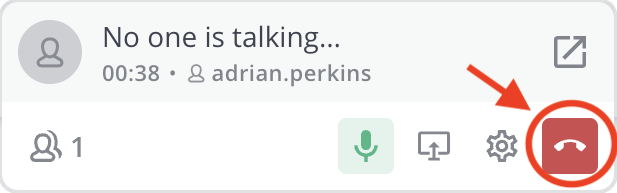
After the call ends, a message will appear in the chat thread displaying Call ended.

Details
As an alternative, use the /call end slash command to end the call.
Host controls
Channel administrators can enable or disable calls and share controls with call hosts.
To access host controls, use the call widget by selecting the More icon next to a participant’s name.
Call host controls include:
- Transferring host duties
- Removing call participants
- Stopping a screen share
- Muting or unmuting participants
Transfer host duties
To transfer host duties to another call participant, access the host controls and select Make host. Once you transfer host duties, you cannot access host controls unless they are returned to you. System admins can change the host at any time.
Remove call participants
Participants appear in the bottom-left corner of the call widget.
To remove a participant from a call, use the host controls to select Remove from call and confirm by selecting Yes, remove.
The host will notify the participant of their removal.
Details
Only channel administrators can add participants to a call.
Stop screen share
To stop a call participant's screen share, access the host controls and choose the Stop screen share option.
Additional features and commands
Call link
You can share a call link in a meeting request or with other people. The link is unique to each channel and includes the channel’s ID, so it doesn't change between calls. The call link is valid if the channel is active. When a channel is archived or deleted, the share link becomes invalid.
Use /call link to generate a shareable link.
Screen share
During a call, participants can share their screen unless a system admin has disabled it.
Follow these instructions to share your screen:
- At the bottom of the call widget, select Start presenting.
- Select the screen you want to share.
- To stop sharing, select the Stop presenting icon or the Stop sharing option.
Considerations
Call ringing
Call ringing is only available for private channels and Direct Messages. Call ringing is NOT available for open channels.
Record calls
The host of a call can record calls if enabled by the system administrator.
The default recording duration is 60 minutes, but the system administrator can modify it.
Details
If you would like to see this feature implemented, submit a feature request with the P1 Help Desk.Transcribe recorded calls (Not implemented)
This feature is not currently available in P1.
When implemented, this feature will generate a transcription text file after a call is recorded and post it in the call thread. Transcription will require the Call recording feature.
Details
If you would like to see this feature implemented, submit a feature request with the P1 Help Desk.Known bugs
/call statsdisplays an error message.
“Error: Empty stats object”/call enddisplays an error message.
“Command with a trigger of '/call end' not found. Click here to send as a message.”
Found a bug?
Report bugs by submitting a ticket to the P1 Help Desk.Related content
Review the official Mattermost documentation for more information regarding Mattermost Calls.